What is Moltbot?
Moltbot (formerly Clawdbot) is an open-source personal AI assistant that runs entirely on your own machine. Unlike cloud-based AI services, Moltbot keeps your data private by default and gives you full control over your AI assistant.
Key Features
- Multi-platform messaging — Works with WhatsApp, Telegram, Discord, Slack, Signal, and iMessage
- Persistent memory — Learns your preferences and context over time
- Web browsing — Can browse, fill forms, and interact with websites
- File management — Handles files and executes shell commands
- Extensible — 50+ integrations including Claude, GPT, Spotify, Philips Hue, Obsidian, Twitter, Gmail, and GitHub
- Self-modifying — Can write its own extensions and skills
Why Run Moltbot in a VM?
Running Moltbot in a virtual machine provides several advantages:
- Complete isolation — Your host system stays protected
- Easy reset — Something breaks? Clone from backup and you’re back
- Headless operation — Use your Mac normally while Moltbot runs in the background
- Portable — Clone and move VMs between machines
- iMessage support — Unlike Linux, macOS VMs give you access to iMessage integration
Prerequisites
- Apple Silicon Mac (M1, M2, M3, M4 — any will work)
- macOS on your host machine
- At least 16GB RAM recommended (8GB minimum)
- 50GB+ free disk space for the VM
Quick Setup Guide
1. Install Lume
curl -fsSL https://raw.githubusercontent.com/trycua/cua/main/libs/lume/scripts/install.sh | bashAdd ~/.local/bin to your PATH if not already present:
echo 'export PATH="$HOME/.local/bin:$PATH"' >> ~/.zshrc
source ~/.zshrc
2. Create a macOS VM
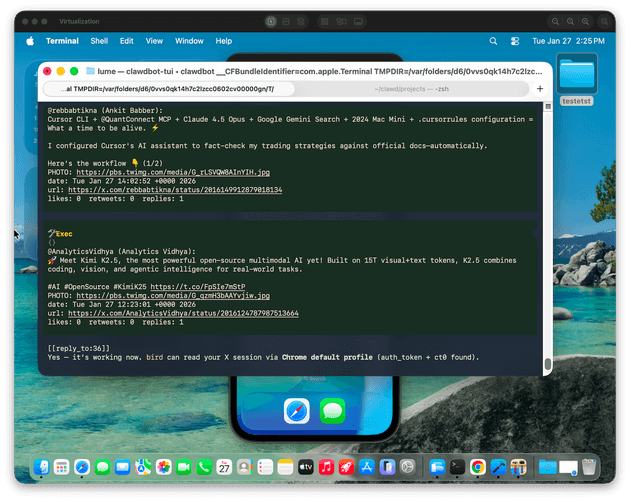
lume create macos --name moltbot-vm --unattended tahoeThis downloads macOS and creates the VM, automatically complete the Setup Assistant using VNC connection and OCR. After this process, your VM is ready to use with the user lume, password lume
3. Run the VM Headlessly
Once setup is complete, run without display:
lume run moltbot-vm --no-display4. SSH into the VM
Run this command to get IP address of the VM
lume get moltbot-vmssh lume@198.164.x.xReplace lume with the username you created during setup if you set it up manually.
5. Install Moltbot Inside the VM
curl -fsSL https://molt.bot/install.sh | bashOr via npm:
npm i -g clawdbot
clawdbot onboard
6. Configure Your Channels
Edit ~/.clawdbot/clawdbot.json to add your messaging channels:
{
  "channels": {
    "whatsapp": { "enabled": true },
    "telegram": { "enabled": true, "token": "YOUR_BOT_TOKEN" },
    "discord": { "enabled": true, "token": "YOUR_BOT_TOKEN" }
  }
}
7. Login and Start
clawdbot login
clawdbot start
The gateway runs automatically via the daemon you installed.
6. Setup Xcode
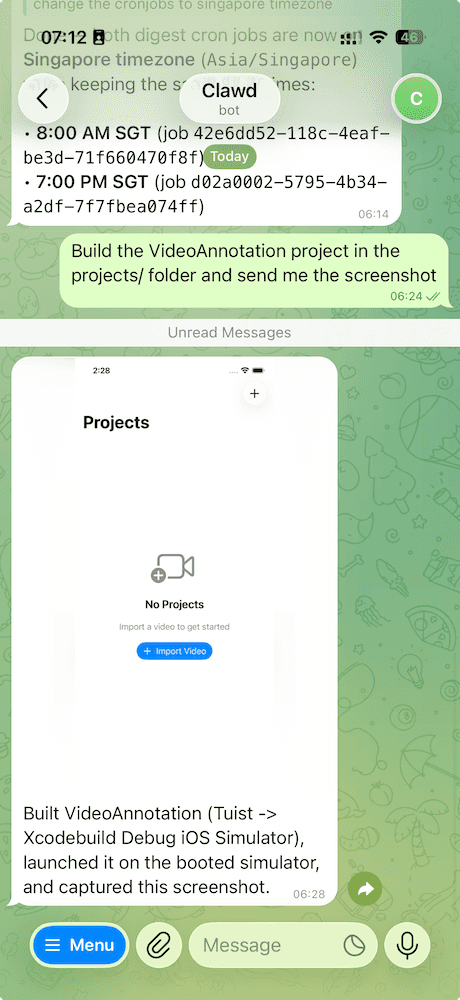
if you are an iOS developer like me, you can now install Xcode and other relevant tools for iOS development.
After that, I can ask my bot to generate code, run the app, and send me the screenshot of the running app on Telegram, very cool 😎
VM Management Tips
Save a Golden Image
Before heavy customization, snapshot it:
lume stop moltbot-vm
lume clone moltbot-vm moltbot-vm-backup
Reset Anytime
lume delete moltbot-vm
lume clone moltbot-vm-backup moltbot-vm
Keep It Running 24/7
If using a laptop, keep it plugged in. Configure Energy Saver to prevent sleep, or the VM will pause when your Mac sleeps.
FAQ
Can I use any Mac, not just Mac Mini? Yes. MacBook Air, MacBook Pro, iMac, Mac Studio — any Apple Silicon Mac works.
Does it work on M1? Yes. All Apple Silicon works — M1, M2, M3, M4. That dusty MacBook Air from 2020? Yep.
What about cloud? Lume works on AWS EC2 dedicated Mac hosts too. But at ~$720/month, your home Mac is already paid for.
